 Wild Hunt
DISCOVER · COLLECT · EXPLORE
A field guide to
Wild Hunt.
Turn the wildlife around you into a collection of your own. Start with your camera and a little curiosity.
Wild Hunt is a website for photographing plants, birds, insects, and other wildlife. AI suggests what you found. Camera missions give you a specific subject to look for, and a human reviewer makes the final mission decision.
START HERE
Your first discovery
-
Sign in with X.
Tap “Connect wallet” and choose X. Use the same X account on your phone and desktop to recover the same journal. A separate wallet extension is not required.
-
Find something that catches your eye.
Open Collection and choose “Photograph your first find” or use “Make a discovery” on the homepage. Allow camera access when your browser asks.
-
Take clear photographs.
Show the subject in focus, then take a second angle with some surroundings. Keep a respectful distance. Existing photos can also be added to your journal.
-
Save and check your collection.
The photo is saved while identification runs. Open its card to see the suggested name, explanation, and review status. Processing may take a few minutes.
A suggested name is the closest supported identification, not a guarantee. A photo may only support a genus or broader group. Artificial plants can resemble real species, but a resemblance does not make them qualifying living wildlife for a mission.
ONE SUBJECT. YOUR OWN PHOTO.
Camera missions
A mission can be as simple as “Photograph a yellow flower” or “Photograph a tree.” Read the written objective: the example picture shows the kind of subject to find, and is not an image to submit.
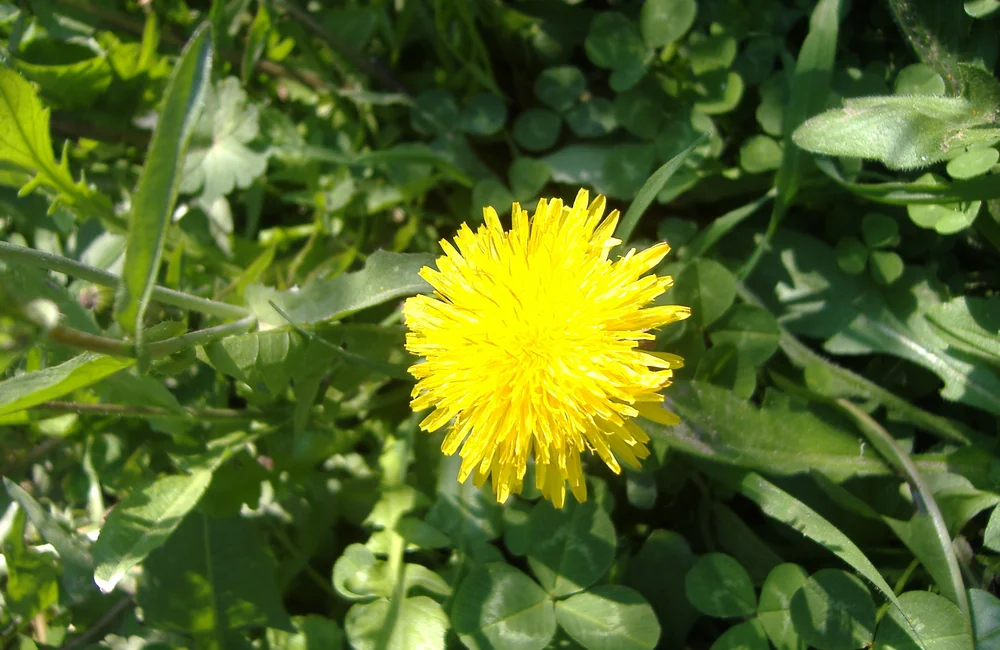
Your own living subject, outdoors.
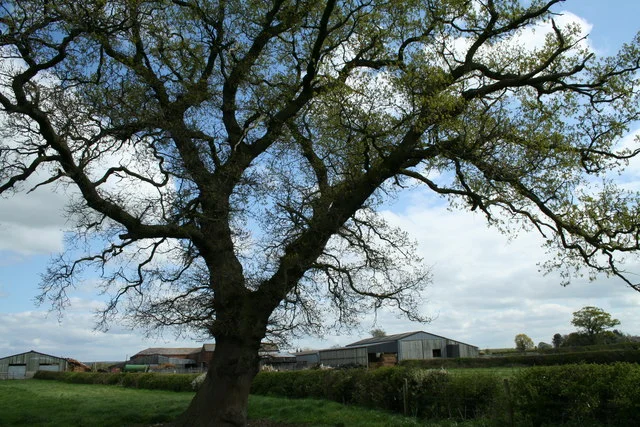
Show its trunk and branches.
- Open Missions and tap Take mission photo.
- Use the website camera within the five-minute capture session.
- Take the main photo and follow the second-angle instruction shown on screen.
- Save the discovery. It is submitted to that mission automatically.
- Return to the mission card for the AI result and the operator’s decision.
Gallery uploads cannot complete camera missions. Existing journal photos cannot be attached later to bypass the capture requirement. If the session expires, start a fresh capture.
Collection challenges appear separately. Those may require several distinct approved species; a single-subject photo task does not.
KNOW WHERE YOUR PHOTO STANDS
Understanding review
AI checks whether the visible subject matches the objective. It can report a match, a mismatch, or uncertainty. AI does not approve a reward. The operator sees the main photo, second angle, AI explanation, and relevant flags before deciding.
| What you see | What it means |
|---|---|
| Checking your mission photo | Your photo is queued or being assessed. |
| AI: matches / does not match / uncertain | The AI assessment is ready. The mission is awaiting operator review. |
| Mission approved | The operator approved your submitted evidence. A reward still requires a funded campaign and eligibility. |
| Mission not approved | Read the operator’s reason. Take a new photo if the task remains open. |
| Retake requested | The reviewer needs clearer or different evidence. Follow their note and capture again. |
| Needs a fresh review | The previously reviewed evidence or relevant campaign conditions changed. |
| Photo check interrupted | Identification could not finish. Your saved photo is preserved; no approval or reward is inferred. |
Species identification, collection approval, and mission approval are separate. A tree mission can be approved without an exact tree species name, and a species suggestion alone does not approve a mission.
YOUR FIELD JOURNAL
Keep what you discover
Your collection holds saved observations and their current identification or review status. Filter by wildlife category, search your discoveries, or open a photo for the full explanation. Pending observations remain distinguishable from approved discoveries.
Sign in with the same X account on each device to see the same saved journal. Updates appear when the page refreshes its data or you return to it. If a photo has not appeared, check that saving completed before closing the camera.
You can download a species card or delete a photograph from its details. Evidence supporting an active reward claim may be temporarily locked against changes or deletion.
FUNDED IN ADVANCE
How rewards work
Practice tasks have no attached reward pool. For a funded campaign, the mission displays the asset, fixed reward amount, funding source, and end date. Asset rewards, including any future stock-token rewards, depend on the specific campaign and issuer setup; they are not promised for every photo.
- A campaign must have a configured, funded pool and published rules.
- You submit fresh camera evidence that meets those rules.
- The operator reviews the exact photos and approves the mission.
- Eligibility and available funding are checked before an approved claim can be issued.
- You claim through the website. A reward is shown as paid only after the blockchain transfer is confirmed.
Approval does not send money automatically. Rewards are limited to the funded pool and campaign capacity, with at most one reward per wallet per campaign. A claim can expire or fail; an approval is not a completed payment.
The issuer may impose country, identity, age, and asset-transfer requirements. Asset values can change, and a stock token is not automatically the same as directly owning a share. Read the particular issuer’s terms when a campaign becomes available.
LEAVE ONLY FOOTPRINTS
Fair play
Take your own photographs during the mission capture session. Do not submit online images, photograph a screen, use generated images, or substitute an artificial object for a living subject.
Wild Hunt uses short capture sessions, two angles, duplicate and similarity checks, AI flags, and human review. These checks reduce abuse; they cannot prove a camera feed is genuine or make cheating impossible. Google reverse-image search is currently disabled, so a photo is not being checked against the entire web.
Never damage, move, bait, or handle wildlife for a mission. Stay on permitted paths and avoid including faces, house numbers, or other private details. If the requested angle is unsafe, stop and choose another subject.
YOUR ACCOUNT
Account & privacy
X sign-in is handled by Privy. On a phone, the sign-in flow may reuse an available browser session; access to the account signed into the native X app depends on X and the device. Wild Hunt cannot read or automatically select accounts inside your X app.
Your journal is private to your account and the authorized review team. Images are processed for identification through a private AI worker; photos are not a public feed. Use the same X account to recover your journal on another device.
Location is optional for journal entries. A particular local campaign may require it, and your browser still controls location permission. Location is not proof that a photograph was taken there.
Read the full privacy notice for image processing, account data, analytics, deletion, and retention, and the reward terms before participating.
WHEN SOMETHING GETS STUCK
Troubleshooting
The camera does not open
Open Wild Hunt directly in Safari or Chrome, allow camera access in site settings, and close other tabs using the camera. Some social-app browsers restrict camera access. Camera missions require a fresh in-site capture.
I saved a photo but cannot see it on another device
Confirm both devices are signed into the same X account, return to Collection, and refresh once. A photo still waiting in the capture form has not yet been saved. Check for a visible save error on the original device.
The AI gives a broad name or an uncertain result
Get a sharper view of the relevant details and a second angle of the same subject. Some species cannot be distinguished from a photograph. Follow any reviewer note rather than assuming the closest resemblance is a confirmed identification.
Location permission is not working
Check both browser site permission and your phone’s location-services settings. For a journal entry, you can leave location unchecked. If a campaign explicitly requires location, capture again after permission works.
I see “Too many requests” or an interrupted check
Wait before retrying; repeatedly clicking can prolong the problem. Identification and uploads have usage limits. If processing is unavailable, a saved photo does not become approved automatically.
My mission is approved. Where is the reward?
Practice tasks do not pay rewards. A funded task also requires eligibility, available capacity, enabled payouts, and a completed claim. Check the mission and Rewards pages for the specific status.
AS OF 12 SEPTEMBER 2026
Launch status
- Available X sign-in, photo saving, AI identification, collections, and practice camera tasks.
- Implemented Private operator review with image evidence, decisions, and reasons. Operator account access still needs configuration.
- Not active Production reward payouts. Funding, contract configuration, issuer eligibility, and operator details remain prerequisites.
- Disabled Google reverse-image search.
The application is the source of truth for current task availability and reward status. This manual explains the flow; it does not override a campaign’s rules or guarantee an identification or payment.